This plugin (formerly named Attribute Image Swatch) adds a new Option Type to your Zen Cart — Image Swatch. That option type swaps a product's main-image display with an attribute-specific image upon click. Multiple product quantities can be entered, one for each configured "option value". See it in action here.
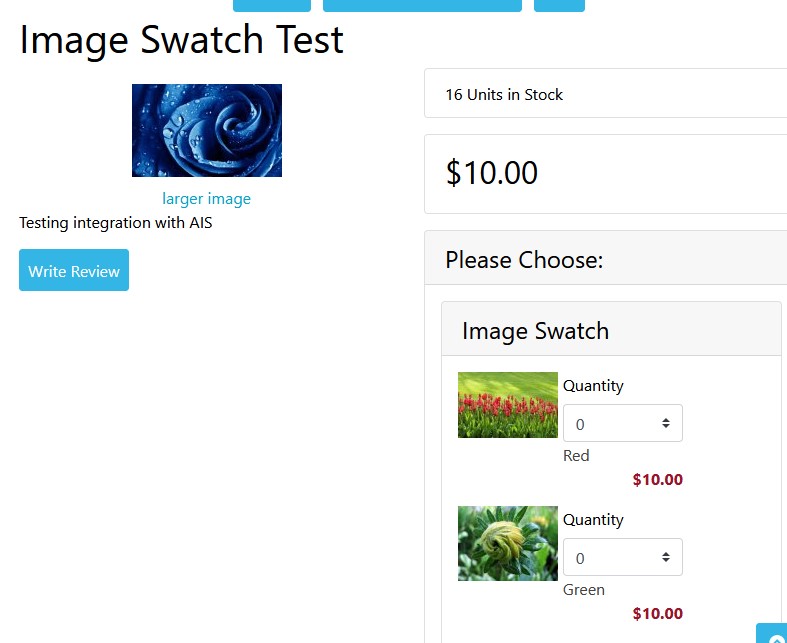

An Image Swatch type attribute displays each option-value as a block showing the attribute's "small" color swatch, its name and price and a quantity dropdown. If the Products' Options' Stock Manager is installed, the display can optionally include the option-value-specific stock level.
Each Quantity dropdown ranges from 0 to ATTR_SWATCH_MAX_QUANTITY, in increments of the product-specific Product Quantity Units. A customer can choose various quantities of each option value and then click the add-to-cart button. When a product's configuration includes an Image Swatch option, the quantity input in the add-to-cart block is disabled.
The bottom-left image shows the change in the product's information display after clicking the image associated with the Green option. If the customer subsequently clicks the "larger image" link, the large image associated with the attribute's image-swatch is displayed.
This section identifies the processes you'll use to initially install, upgrade, or uninstall AIS entirely.
The details of this section are provided when you purchase the plugin.
The details of this section are provided when you purchase the plugin.
The details of this section are provided when you purchase the plugin.
This section identifies the ares within your Zen Cart admin that you'll use to customize your AIS installation.

The first time an admin signs into (or refreshes the screen of) your Zen Cart admin after you have installed the files for Attribute Image Swapper, an initialization script runs that creates the Image Swatch option type within your products_options_types database table.
Now, when you you define a new option name using Catalog->Option Name Manager, one of the selections is Image Swatch. Use that option-type to enable the Image Swatch functionality for your store's products.
Follow the general guidance supplied by the Zen Cart FAQ How do I add attributes to my products?, with these considerations:
- Select the Image Swatch option type when defining your new option within Catalog->Option Name Manager.
- Define the option values for your new option using Catalog->Option Value Manager.
- Use Catalog->Attributes Controller to associate your new option with a product. For the Image Swatch type attribute, it's important to to associate an Attributes Image Swatch image to each of the option's values — that setting is towards the bottom of the Attributes Controller's display.
- If your store doesn't use Image Handler5, make sure that you have also uploaded a medium and large image for each of your attributes' swatches! The large image will be used on the product's detailed information page (e.g. product_info), displayed by either the Fuel Slimbox or Zen Colorbox plugin (if enabled), the Bootstrap-4 template's modal display or a pop-up window otherwise.
Note: Make sure that Configuration :: Attributes :: Enable Attributes Images is set to true; its default is false. Without that setting, you won't be able to add images to your attributes!
The store-side processing for Attribute Image Swapper makes use of the following built-in Zen Cart configuration elements:
- Within a product's configuration (Catalog->Categories/Products), the value set for Product Quantity Units defines the increment used for an image-swatch quantity drop-down menu and the value set for Product Quantity Maximum is enforced when image-swatch items are added to the customer's cart.
- An attribute's swatch image is displayed using the values specified in Configuration->Images->Small Image Width and ->Small Image Height.
- The setting in Configuration->My Store->Display Cart After Adding Product is used after a successful add-to-cart action of an AIS-enabled product.
- The setting in Configuration->Stock->Allow Checkout is used during the add-to-cart action. If the value is set to false, then at most the stock-on-hand can be added to the cart.
- If your store has installed:
- Image Handler5 for Zen Cart 1.5.5+, then the image-swatch processing will use IH5 to process any attribute images — enabling you to upload only the attribute's large image.
- Fuel Slimbox (Lightbox) or ColorBox for Zen Cart, then the large-image display resulting from an image-swatch replacement will display the selected attribute's "large" image — otherwise, the built-in Zen Cart pop-up window is used.
- Bootstrap-4 Template, then AIS "plays nice" with that template's modal product-image display.
- Products' Options' Stock Manager, then option-specific stock levels can be displayed within each image-swatch group.
Note: Attribute Image Swapper "plays well" with all other option types except the File option type. If a product's attributes include both Image Stock and File option types, the file-related input is ignored when the product is added to the cart.
There are two configuration switches, currently available by editing /includes/classes/observers/class.attribute_swatch_observer.php:
- ATTR_SWATCH_MAX_QUANTITY — the value entered here (default: 16) is the largest value displayed in each option-value's Quantity dropdown menu.
- ATTR_SWATCH_SHOW_STOCK_QUANTITY — this value, either
'true'(default) or'false'— indicates whether or not to display the option-value-specific stock quantity on the products' details pages. Requires prior installation of the Products' Options' Stock Manager.
Starting with AIS v2.1.0, there's also a configuration setting in Configuration :: Attribute Settings: Attribute Image Swapper: Use Minimized Script?. That value defaults to Yes and, unless you're trying to debug the plugin's jQuery processing, doesn't need to be changed.
This section identifies the plugin's version-history and files changed in each version.
- v2.2.0, 2023-02-08:
- CHANGE: Minimum Zen Cart version supported is now 1.5.7a.
- CHANGE: Refactoring for current PHP versions; declaring all class variables for PHP 7.4+.
- BUGFIX: Products with an "Image Swatch" option type always require selection.
- CHANGE: Moved the AIS jQuery scripts to
template_defaultso they're available for all templates. Be sure to remove the version from your current template if you're upgrading! - BUGFIX: Correct product's "Starting at" price for AIS products priced-by-attribute with additional attribute types.
- The following files were changed, added or removed:
- /includes/auto_loaders/config.attribute_swatch.php
- /includes/classes/observers/class.attribute_swatch_observer.php
- /includes/extra_cart_actions/attribute_image_swatch_actions.php
- /includes/languages/extra_definitions/attribute_swatch_extra_definitions.php
- /includes/modules/pages/shopping_cart/header_php_attribute_image_swatch.php
- /includes/templates/template_default/jscript/jquery.attribute_image_swatch.js
- /includes/templates/template_default/jscript/jquery.attribute_image_swatch.min.js
- /includes/templates/YOUR_TEMPLATE/jscript/jquery.attribute_image_swatch.js (Moved to
template_default) - /includes/templates/YOUR_TEMPLATE/jscript/jquery.attribute_image_swatch.min.js (Moved to
template_default) - /YOUR_ADMIN/includes/auto_loaders/config.attribute_swatch_admin.php
- /YOUR_ADMIN/includes/init_includes/init_attribute_swatch.php
- v2.1.0, 2021-09-20:
- CHANGE: Minimum Zen Cart version supported is now 1.5.6b.
- BUGFIX: Correcting PHP notices for missing attributes' array elements.
- CHANGE: Add support for the Bootstrap-4 template's modal image display. Note that v3.1.5 or later of the template is required for proper operation.
- CHANGE: Now providing a minimized version of the plugin's jquery, with configuration setting.
- The following files were changed, added or removed:
- /includes/classes/observers/class.attribute_swatch_observer.php
- /includes/modules/pages/popup_image/header_php_attribute_image_swatch.php
- /includes/templates/YOUR_TEMPLATE/jscript/jquery.attribute_image_swatch.js
- /includes/templates/YOUR_TEMPLATE/jscript/jquery.attribute_image_swatch.min.js
- /YOUR_ADMIN/includes/init_includes/init_attribute_swatch.php
- /zc155/*.*
- /zc156/*.*
- v2.0.1, 2019-05-07:
- BUGFIX: Correct "can't checkout".
- The following files were changed:
- /includes/classes/observes/class.attribute_swatch_observer.php
- v2.0.0, 2019-05-06:
- CHANGE: Reduce core- and template-override files in distribution.
- BUGFIX:
LARGE_IMAGE_HEIGHTandLARGE_IMAGE_WIDTH, non-standard constants. - BUGFIX: Correct AIS products' base-price calculations when not priced by attributes.
- CHANGE: Enable integration with Favorites Wishlist, v4.0.0 and later.
- BUGFIX: Correct PHP Notice on
shopping_cartpage, if the customer's cart is empty. - The following files were changed:
- /includes/auto_loaders/config.attribute_swatch.php
- /includes/classes/observers/class.attribute_swatch_observer.php
- /includes/extra_cart_actions/attribute_image_swatch_actions.php
- /includes/functions/functions_prices.php (Removed from the distribution, see this tab for more information)
- /includes/modules/pages/shopping_cart/header_php_image_swatch.php
- /includes/modules/pages/popup_image/header_php_attribute_image_swatch.php
- /includes/modules/YOUR_TEMPLATE/attributes.php (Removed from the AIS distribution; use the version provided by your base Zen Cart distribution)
- /YOUR_ADMIN/includes/auto_loaders/config.attribute_swatch_admin.php
- /YOUR_ADMIN/includes/functions/functions_prices.php (Removed from the distribution, see this tab for more information)
- /YOUR_ADMIN/option_name.php (Now provided for the two Zen Cart base distributions supported, see this section for additional information)
- v1.1.9, 2016-10-23:
- BUGFIX: Ensure that at least one AIS "quantity" is non-zero.
- BUGFIX: Correctly "hide" the product's normal add-to-cart quantity box if an AIS attribute is set for the product.
- CHANGE: Drop support for Zen Cart versions prior to 1.5.4.
- The following files were changed:
- /includes/classes/observers/class.attribute_swatch_observer.php
- /includes/extra_cart_actions/attribute_image_swatch_actions.php
- /includes/languages/english/extra_definitions/attributes_swatch_extra_definitions.php
- v1.1.8, 2016-07-05:
- BUGFIX: Correct log generated when checkbox-attribute product is placed into the shopping cart.
- CHANGE: Plugin's name changed to Attribute Image Swapper from Attribute Image Swatch.
- The following files were changed:
- /includes/classes/observers/class.attribute_swatch_observer.php
- /includes/modules/pages/shopping_cart/header_php_image_swatch.php
- v1.1.7, 2016-04-17:
- CHANGE: Update core-file and template-override changes to use the 2016-03-29 version Zen Cart v1.5.5 as the change-basis.
- CHANGE: Restructure the plugin's distribution, moving all documentation and uninstall SQL scripts to
/docs/attribute_image_swatch. - The following files were changed:
- /includes/functions/functions_prices.php
- /includes/modules/YOUR_TEMPLATE/attributes.php
- /YOUR_ADMIN/includes/functions/functions_prices.php
- v1.1.6, 2016-01-06:
- CHANGE: Update template-override changes to use Zen Cart v1.5.5 as the change-basis.
- The following files were changed:
- /includes/modules/YOUR_TEMPLATE/attributes.php
- v1.1.5, 2015-12-24:
- BUGFIX: Unwanted debug-log on shopping-cart page when the cart's empty.
- CHANGE: Update core-file changes to use Zen Cart v1.5.5-beta as the change-basis.
- The following files were changed:
- /includes/functions/functions_prices.php
- /includes/modules/pages/shopping_cart/header_php_image_swatch.php
- /YOUR_ADMIN/includes/functions/functions_prices.php
- v1.1.4, 2015-03-16:
- CHANGE: Re-insert the configuration items
PRODUCTS_OPTIONS_TYPE_SELECT,UPLOAD_PREFIXandTEXT_PREFIXif they're missing due to poorly-coded plugins' SQL installation scripts. - The following files were changed:
- /YOUR_ADMIN/includes/init_includes/init_attribute_swatch.php
- CHANGE: Re-insert the configuration items
- v1.1.3, 2015-03-06:
- BUGFIX: Incorrect product price calculated when multiple AIS attributes are used on a single product. The price is now calculated as the "base price" plus the minimum value of all AIS attributes.
- The following files were changed:
- /includes/functions/functions_prices.php (Added)
- /YOUR_ADMIN/includes/functions/functions_prices.php (Added)
- v1.1.2, 2015-02-20:
- BUGFIX: Database error received if non-null DB_PREFIX is used.
- The following files were changed:
- /YOUR_ADMIN/includes/init_includes/init_attribute_swatch.php
- v1.1.1, 2015-01-28:
- BUGFIX: Non-unique HTML id attributes when multiple AIS attributes are used on a single product.
- The following files were changed:
- /includes/classes/observers/class.attributes_swatch_observer.php
- v1.1.0, 2015-01-16:
- CHANGE: Added integration with Zen Colorbox.
- BUGFIX: Limit drop-down quantities to stock-on-hand if Configuration->Stock->Allow Checkout is set to false.
- The following files were changed:
- /includes/classes/observers/class.attributes_swatch_observer.php
- v1.0.1, 2015-01-09:
- BUGFIX: Correct HTML validation errors.
- The following files were changed:
- /includes/classes/observers/class.attributes_swatch_observer.php
- /includes/templates/YOUR_TEMPLATE/jscript/jquery.attribute_image_swatch.js
- /includes/templates/YOUR_TEMPLATE/jscript/jscript_attribute_image_swatch.php
- /includes/templates/YOUR_TEMPLATE/jscript/jscript_jquery_cdn.js
- v1.0.0, 2015-01-01, Initial release.