What it does
There have been many times that I've taken a look in one of my Zen Cart's /logs (or /cache for Zen Cart v1.5.0) directories and found some debug log files that I wasn't previously aware of. This plugin allows an admin user to view (and selectively delete) any .log files with names that, starting with v2.1.0, match a set of values configured within Configuration->Logging:
| Field Name | Description |
|---|---|
| Display Logs: Display Maximum | Identifies the maximum number of files that the plugin displays on a page; default: 20. |
| Display Logs: Maximum File Size | Identifies the number of bytes of the currently-selected file to display before truncation; default: 80000. |
| Display Logs: Included File Prefixes | Identifies the filename prefixes to include in the display; all files displayed have a file-extension of .log. The value is a pipe-separated list (|); any intervening spaces are removed prior to the plugin's usage. The default list is myDEBUG-|AIM_Debug_|SIM_Debug_|FirstData_Debug_|Linkpoint_Debug_|Paypal|paypal|ipn_|zcInstall|notifier|usps|SHIP_usps. |
| Display Logs: Excluded File Prefixes | Identifies the filename prefixes to exclude from the display. The value is a pipe-separated list (|); any intervening spaces are removed prior to the plugin's usage. The default value is an empty string. |
The plugin searches only in these directories for the matching log-files:
- /cache
- /logs
- /includes/modules/payment/paypal/logs
Once installed, the plugin can be accessed by a signed-in and authorized admin user by selecting Tools->Display Log Files. In addition, starting with v1.0.8, a message is shown in your admin's header if any myDEBUG-*.log files are found in the /logs directory, if defined, or the /cache directory otherwise.
Note: Due to the potentially sensitive nature of the information contained in some of the log files, I suggest that you run your admin in SSL mode if you use this plugin.
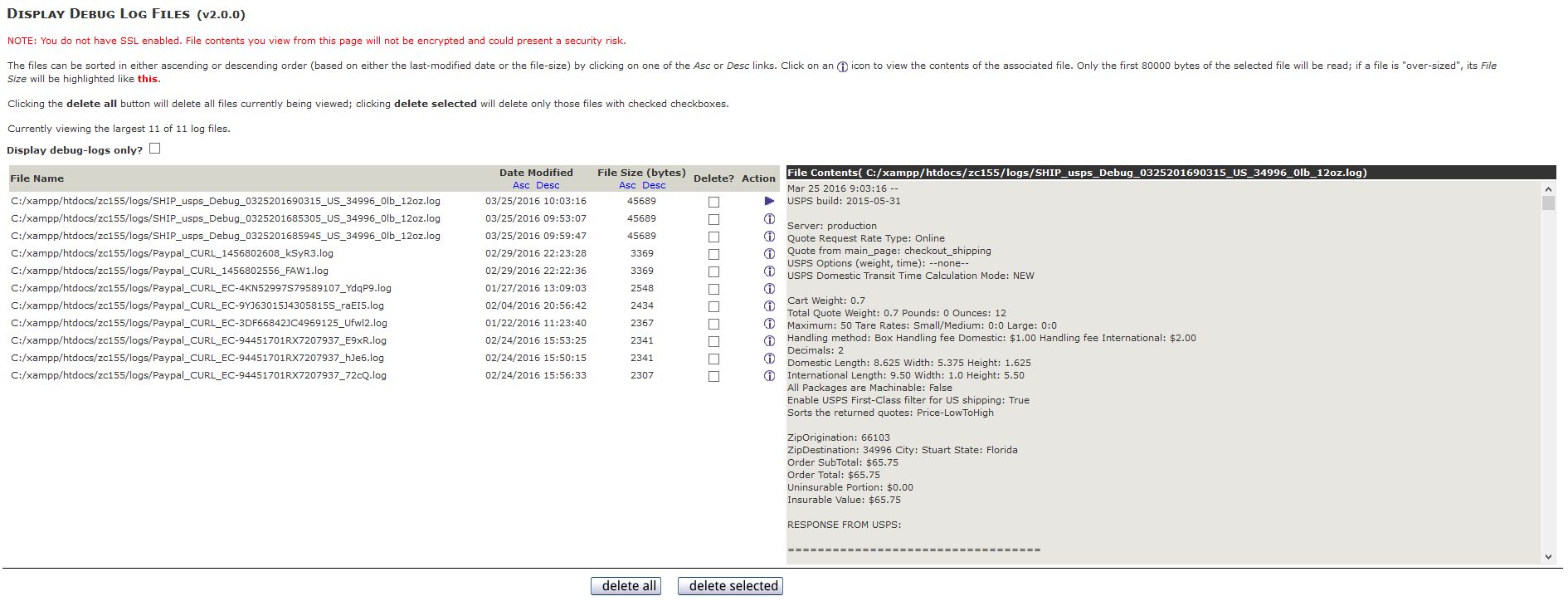
The tool allows the logged-in (and authorized) admin user to:
- Sort the log files by the last-modified date or file-size, either ascending or descending.
- View only the
myDEBUG-*.logfiles. - Select (via checkbox) and then delete only the log files selected.
- Delete all log files currently being viewed.
- View the contents of an individual log file.
The initial screen for the tool looks similar to:
This section identifies the procedure you'll use to install, upgrade or remove the plugin for your Zen Cart.
There are, starting with v2.0.0, no core-file overwrites required by Display Logs. If you are upgrading the plugin from a version less than v2.0.0, please refer to these instructions.
Rename the YOUR_ADMIN folder to match your Zen Cart admin's folder name and then copy the plugin's files to your store's file-system:
- /YOUR_ADMIN/display_logs.php
- /YOUR_ADMIN/includes/auto_loaders/config.display_logs.php
- /YOUR_ADMIN/includes/extra_datafiles/display_logs_filenames.php
- /YOUR_ADMIN/includes/functions/extra_functions/init_display_logs.php
- /YOUR_ADMIN/includes/init_includes/init_display_logs.php
- /YOUR_ADMIN/includes/languages/english/display_logs.php
- /YOUR_ADMIN/includes/languages/english/extra_definitions/display_logs_name.php
- /YOUR_ADMIN/includes/languages/english/images/buttons/button_delete_all.gif
- /YOUR_ADMIN/includes/languages/english/images/buttons/button_delete_selected.gif
Versions of Display Logs prior to v2.0.0 included a core-file overwrite of /YOUR_ADMIN/includes/header.php. In v2.0.0 and later of the plugin, that processing has been moved so that the core-file overwrite is no longer required!.
If you are upgrading Display Logs to v2.0.0 or later from a v1.x.x version, you'll need to remove the plugin's previous change to that file. Edit that file, find and remove the following code fragment:
//-bof-display_logs-lat9-Incorporate torvista's "log note"  *** 1 of 1
  // check for debug logs
  $path = (defined ('DIR_FS_LOGS')) ? DIR_FS_LOGS : DIR_FS_SQL_CACHE;
  $log_files = glob ($path . '/myDEBUG-*.log');
  $num_log_files = ($log_files === false) ? 0 : count ($log_files);
  unset ($log_files);
  if ($num_log_files > 0) {
    $messageStack->add ($num_log_files . ' debug-log files exist, click here to view.', 'caution');

  }
//-eof-display_logs_lat9 *** 1 of 1 ***
If you don't remove that code fragment, you'll receive two copies of the plugin's notification-message in your admin's header.
First, delete the files that were copied to your zen-cart installation's admin directories. Restore your backup up of then use your admin's Tools->Run SQL Patches to run the file /docs/display_logs/uninstall/display_logs_uninstall.sql.
This section identifies the files added or modified for this plugin as well as the plugin's change history.
The plugin provides the following files in its distribution zip-file.
- /YOUR_ADMIN/display_logs.php
- /YOUR_ADMIN/includes/auto_loaders/config.display_logs.php
- /YOUR_ADMIN/includes/extra_datafiles/display_logs_filenames.php
- /YOUR_ADMIN/includes/functions/extra_functions/init_display_logs.php
- /YOUR_ADMIN/includes/init_includes/init_display_logs.php
- /YOUR_ADMIN/includes/languages/english/display_logs.php
- /YOUR_ADMIN/includes/languages/english/extra_definitions/display_logs_name.php
- /YOUR_ADMIN/includes/languages/english/images/buttons/button_delete_all.gif
- /YOUR_ADMIN/includes/languages/english/images/buttons/button_delete_selected.gif
- v2.2.0, 2020-01-23:
- CHANGE: Update to 'align' with v3.1.0 of Report All Errors, as the log-file names might include a trailing severity indicator.
- The following files were changed:
- /YOUR_ADMIN/display_logs.php
- /YOUR_ADMIN/includes/init_includes/init_display_logs.php
- v2.1.2, 2019-09-05:
- BUGFIX: Correct 'Display debug-logs only' for zc156.
- The following files were changed:
- /YOUR_ADMIN/display_logs.php
- /YOUR_ADMIN/includes/init_includes/init_display_logs.php
- v2.1.1, 2017-07-10:
- BUGFIX: Restore log-file sorting that was "lost" in v2.1.0.
- v2.1.0, 2017-07-09:
- BUGFIX: Selected log-file contents not displayed under PHP 7.1.4.
- CHANGE: Update Configuration->Logging to include various configuration settings for the plugin's display.
- v2.0.0, 2016-06-12:
- CHANGE: Move core-file change into the plugin's initialization handling — no more core-file overwrites!
- CHANGE: Use a language constant for log-notification message.
- CHANGE: Add the capability to display only the debug-logs.
- CHANGE: Add the capability to sort by the file-size.
- v1.0.9, 2014-12-20:
- CHANGE: Use Zen Cart v1.5.4 version of /YOUR_ADMIN/includes/header.php as the base code.
- v1.0.8, 2014-08-12:
- Slight modification to change introducted in v1.0.7; if debug-logs are present, a count is shown in the admin header with a link to the Display Logs page.
- v1.0.7, 2014-07-07:
- ADDED ENHANCEMENT using code from torvista here to display error logs in Admin header area upon the log being generated.
- v1.0.6, 2014-02-02:
- BUGFIX: Delete "all" button doesn't work if the CSS buttons for Admin plugin is also installed.
- BUGFIX: Instructions aren't displayed if the admin is running in SSL mode.
- v1.0.5, 2014-01-20:
- BUGFIX: USPS shipping logs now start with SHIP_usps, not just usps.
- v1.0.4, 2013-12-06:
- BUGFIX: Unprintable characters result in blank display.
- BUGFIX: Refreshing page after file delete results in error.
- v1.0.3, 2013-09-12:
- Added missing constant to /YOUR_ADMIN/includes/languages/english/display_logs.php.
- Modifications to /YOUR_ADMIN/display_logs.php to account for large files. The notifier_trace.log file, for instance, can grow to be enormous if not flushed periodically.
- BUGFIX: $dir variable close/unset was in the wrong place (/YOUR_ADMIN/display_logs.php).
- BUGFIX: Needed to convert htmlentities in the loaded file to ensure that any present don't disrupt the file display.
- v1.0.3, 2013-09-12:
- Added missing constant to /YOUR_ADMIN/includes/languages/english/display_logs.php.
- Modifications to /YOUR_ADMIN/display_logs.php to account for large files. The notifier_trace.log file, for instance, can grow to be enormous if not flushed periodically.
- BUGFIX: $dir variable close/unset was in the wrong place (/YOUR_ADMIN/display_logs.php).
- BUGFIX: Needed to convert htmlentities in the loaded file to ensure that any present don't disrupt the file display.
- v1.0.2, 2013-03-30, Changed /YOUR_ADMIN/display_logs.php:
- Added the file-size of the debuglog to the listing
- v1.0.1, 2013-01-05, Changed /YOUR_ADMIN/display_logs.php:
- BUGFIX: v1.5.0 DIR_FS_LOGS(or any other missing directory) resulted in white-screen-of-death
- Add usps*.log files; change notify*.log to notifier*.log
- v1.0.0, 2012-12-22, Initial release.